
How to Remove Background Noise in Audacity
Background noise on a recording — wind, traffic, hum, air conditioning — can be removed in Audacity, but there is a faster way. First, how to clean the audio online in a couple of minutes, then a step-by-step guide for Audacity itself.
The Fastest Way: Remove Background Noise Online, No Software Needed
Audacity is free, but you have to download and install it, and a video must first be converted to an audio file. Its Noise Reduction works well only on steady noise and needs manual tuning. If you just need clean audio quickly, upload your video to Background Noise Removal: there is nothing to download, no effects to learn and no settings to tweak. The AI separates the voice from noise, music and echo on its own.
Remove Background Noise Online in 3 Steps
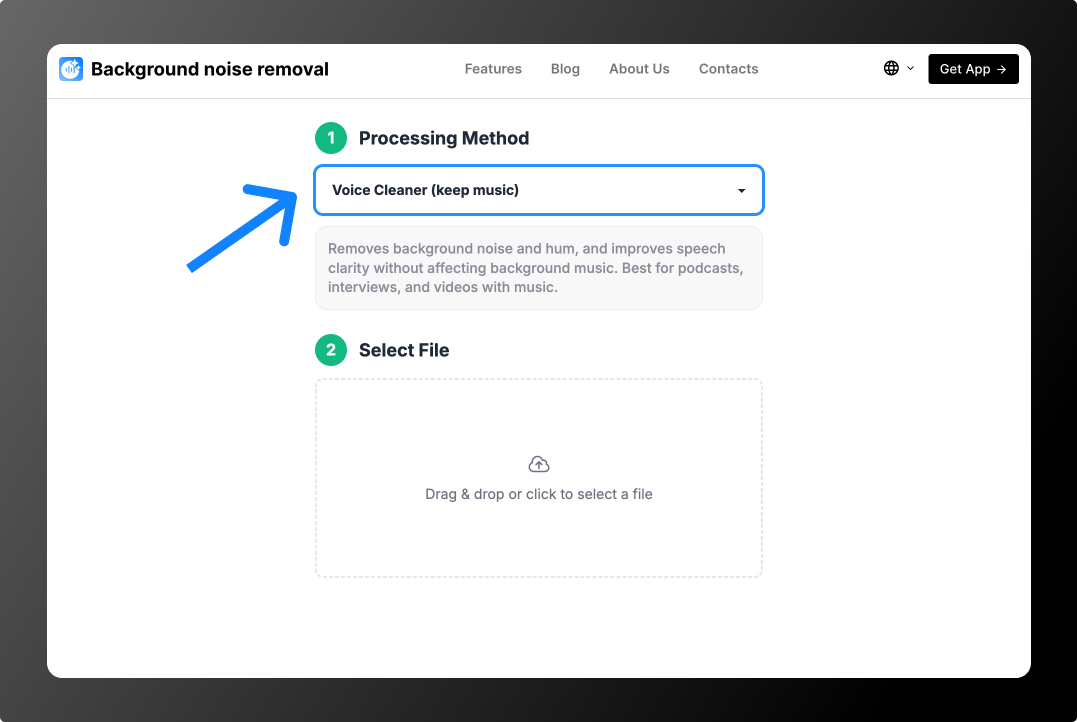
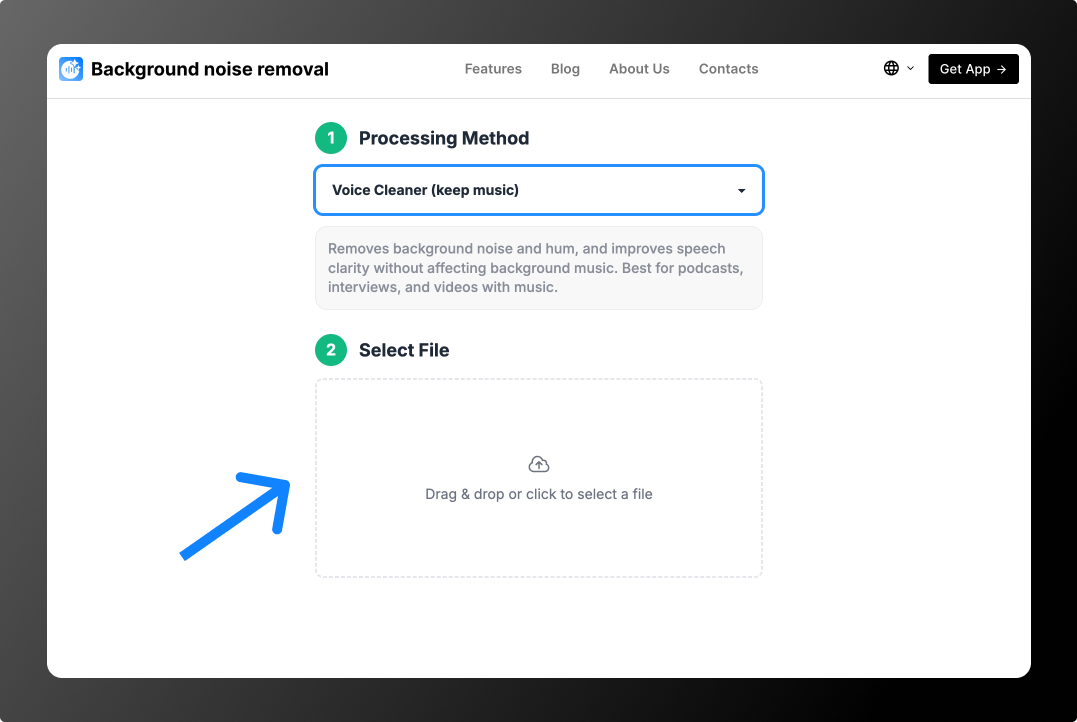
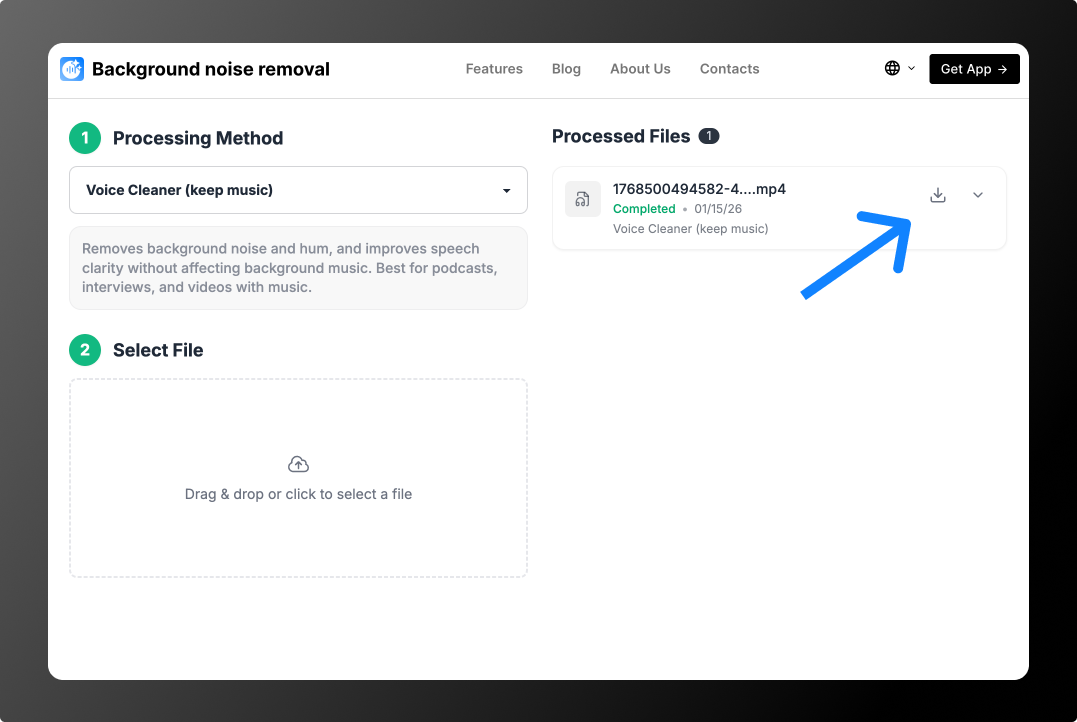
Example: street noise and loud music
Example: echo in an empty room
You can process 2 files for free: the tool cleans the first 30 seconds of each, so you can hear the result. After that, no subscription: from $0.79 per file or minute packs from $1.99 for 10 minutes. See Pricing. You can drop the cleaned file straight back into your project and keep editing.
How to Remove Background Noise in Audacity: Step by Step
- Open your audio file in Audacity (File → Open).
- Find 2–3 seconds where nobody speaks and only noise is audible, and select it.
- Go to Effect → Noise Removal and Repair → Noise Reduction and click Get Noise Profile.
- Select the whole recording (Ctrl+A or Cmd+A) and open Noise Reduction again.
- Start with the defaults: Noise reduction 12 dB, Sensitivity 6, Frequency smoothing 3. Click Preview.
- If the voice sounds robotic, lower the reduction. Click OK and export the file.
Best Noise Reduction Settings in Audacity
- Noise reduction (dB): 6–12 for light hiss, 12–18 for louder steady noise. Higher values damage the voice.
- Sensitivity: 4–8. Raise it if noise remains between words, lower it if speech starts to break up.
- Frequency smoothing: 3–6. Higher values make the result smoother but less precise.
- Two light passes usually sound better than one strong pass.
Audacity Limitations
- It can’t remove changing noise: cars, voices, music, wind gusts.
- Strong settings damage the voice — it becomes metallic or “underwater”.
- It works with audio: for video you have to extract the sound, clean it and put it back.
How to Put the Cleaned Audio Back into Audacity
If you processed the whole video online, simply replace the original clip — same picture, clean sound. If you processed only the audio: Open the cleaned file in Audacity if you want to trim or normalize it, then export in the format you need. For video, the online tool returns the video with clean audio directly — no Audacity needed.
Why Built-In Noise Reduction Doesn’t Always Help
Built-in filters usually “subtract” noise: they find frequencies that look like noise and lower them across the whole recording. That works for steady hum or hiss, but not for noise that changes — cars, wind gusts, voices, music. Noise and voice also share frequencies, so strong settings make speech dull or metallic. AI works differently: it finds the voice and rebuilds it separately from the background, so speech stays natural. More on the AI audio cleaner page.
How to Record with Less Background Noise
- Keep the mic close to the speaker — the closer, the quieter the background.
- Use a lavalier mic — even a cheap one beats a built-in mic.
- Block the wind with a windscreen or your body.
- Turn off air conditioning and fans and close windows while recording.
Audacity or an Online Tool: Which to Choose
- You need it fast, without installing anything — the online tool: upload, pick a mode, download.
- The noise changes (traffic, wind, music, voices) — the online AI tool.
- You already edit in Audacity and the noise is steady — the built-in tool.
- The music must stay — Voice Cleaner (keep music).
More guides: how to remove background noise in apps.
FAQ
What are the best noise reduction settings in Audacity?
Start with 12 dB, sensitivity 6 and frequency smoothing 3, then adjust by ear. For changing noise, use an AI tool instead.
Can Audacity remove background noise from video?
Audacity works with sound only: you need to extract the audio, clean it and put it back in a video editor. Background Noise Removal accepts video directly.
How much does online cleanup cost?
You can process 2 files for free: the tool cleans the first 30 seconds of each, so you can hear the result. After that, no subscription: from $0.79 per file or minute packs from $1.99 for 10 minutes. See Pricing.