
How to Remove Background Noise from Audio
Traffic outside the window, a humming fridge, an air conditioner, people talking in the next room — background noise ruins podcasts, interviews, voice-overs and voice memos more than anything else. The good news: in most cases you don’t need to re-record. Below are four ways to remove background noise from audio, from a one-click online tool to manual cleanup in free and professional editors, with before-and-after examples and tips on which method fits your recording.
Short answer: the fastest way is to upload your file to an online AI noise remover such as Background Noise Removal, choose a mode and download the clean file. If you prefer to do it by hand, Audacity’s free Noise Reduction effect works well for steady hiss and hum.
What Kind of Background Noise Is in Your Recording?
Before choosing a method, listen to the recording and figure out what you are dealing with. Different noise needs different tools:
- Steady noise — hiss from the microphone, hum from electrical interference, the drone of a fan or air conditioner. It sounds the same from start to finish, so even classic noise reduction can remove it.
- Changing noise — traffic, wind gusts, people talking, dogs barking, keyboard clicks. It comes and goes, so classic filters struggle and AI tools work much better.
- Background music — a song playing in a café or a soundtrack under the voice. You either remove it completely or keep it and only clean the noise.
- Echo and reverb — the “hollow” sound of an empty room. Technically it is not noise but reflections of your own voice, and it needs a dedicated echo remover.
Method 1: Remove Background Noise from Audio Online with AI
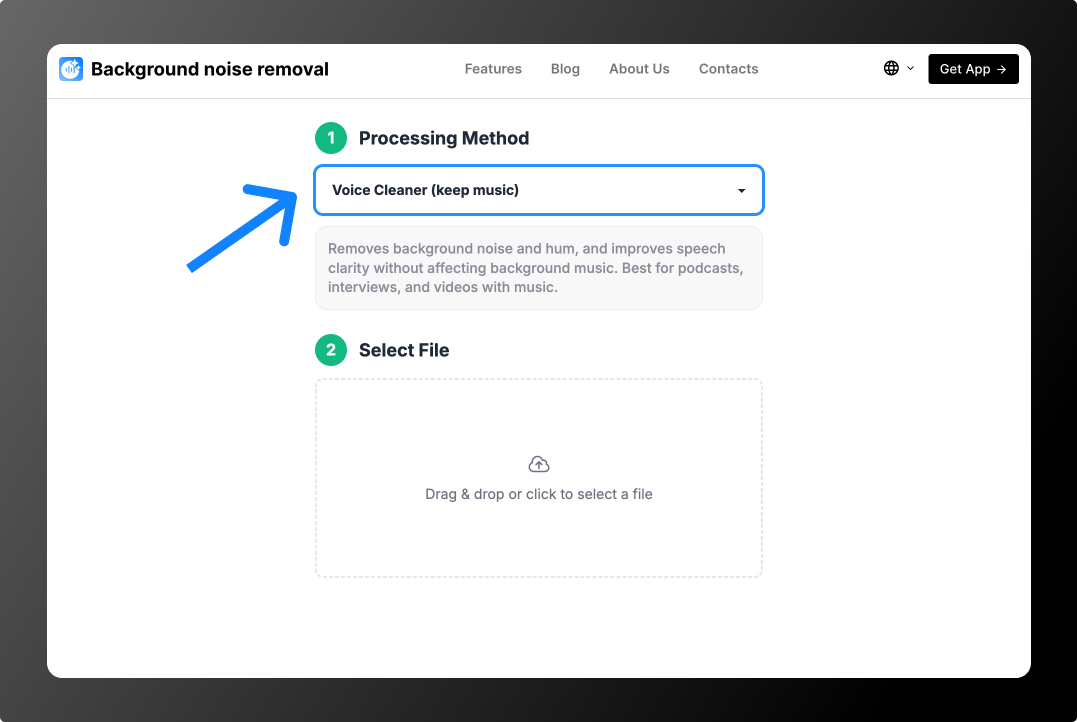
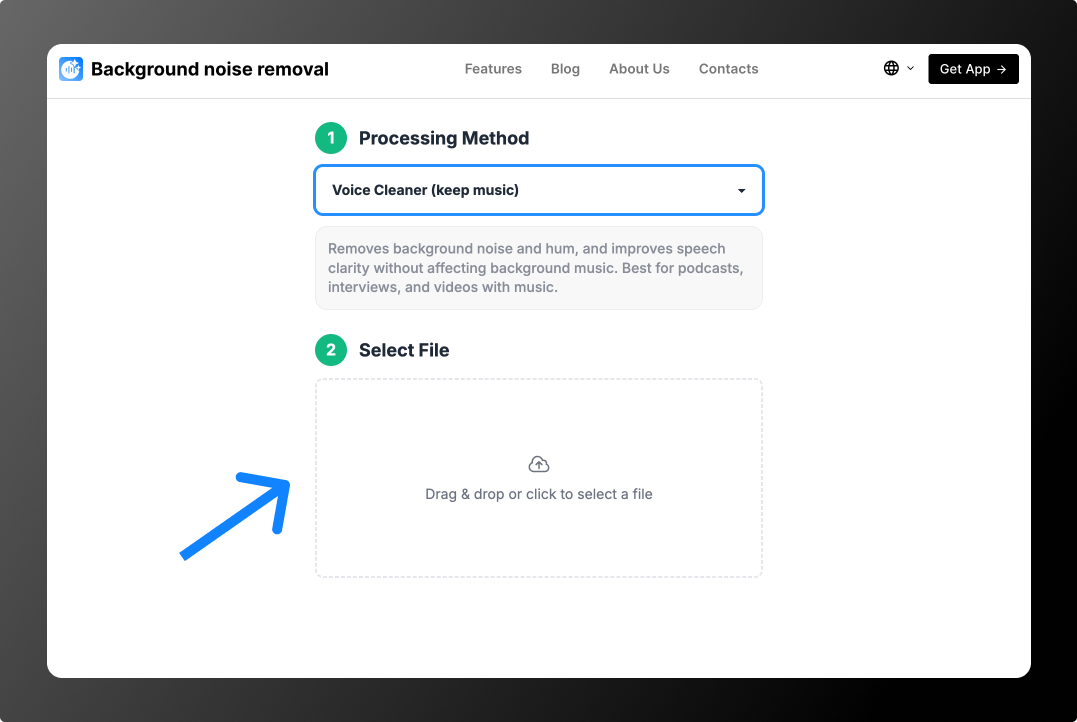
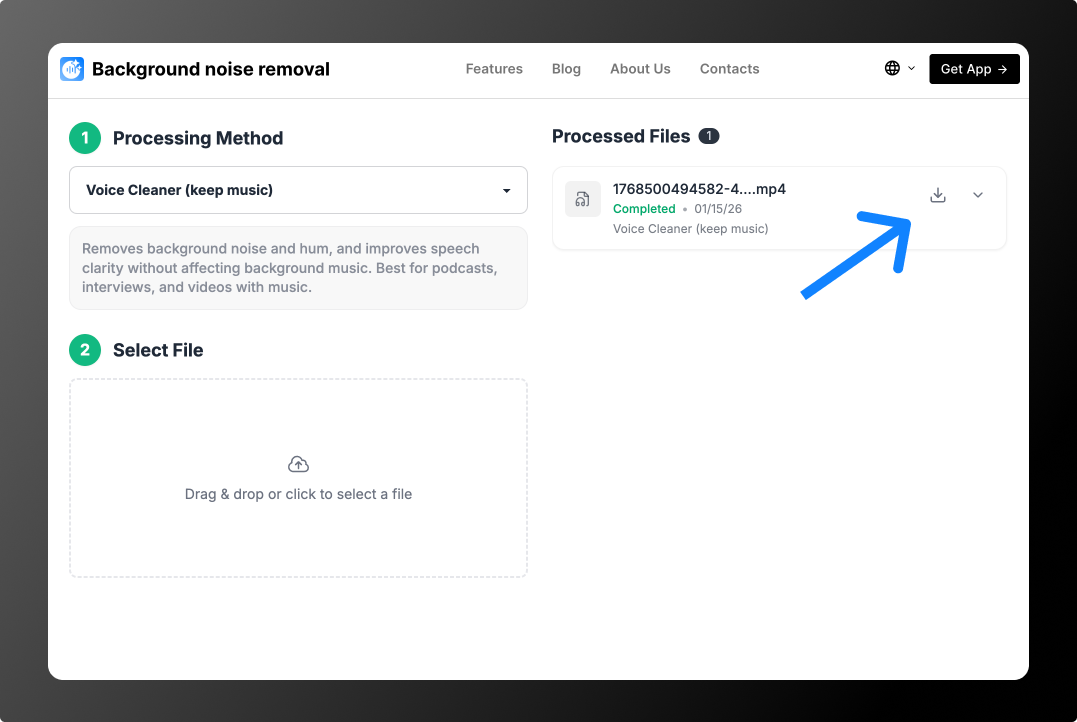
AI noise removers don’t subtract a noise profile — they recognize the voice and rebuild it separately from everything else. That’s why they handle changing noise, music and street sounds, and why the voice stays natural instead of turning metallic. There is nothing to configure: you only pick a mode.
How to Remove Background Noise from Audio in 3 Steps
Before and after: noise outside and loud music
A voice recorded next to an open window with traffic and music playing. Mode: Voice Cleaner (remove music).
Before and after: phone recording from a distance
A quiet, muffled voice recorded on a phone a few meters away. Mode: Bandwidth Extension and Voice AutoEQ (keep noise) — it brings the voice closer and makes it fuller.
Which mode to choose:
- Noise and music, keep only the voice — Voice Cleaner (remove music).
- Noise, but the music must stay — Voice Cleaner (keep music).
- Noise plus echo from an empty room — Voice Cleaner (keep music), Partial Deverb.
- Quiet, distant or “phone-like” voice — Bandwidth Extension and Voice AutoEQ (keep noise). More on the audio enhancer page.
- Loud breaths, “um”, coughs and pauses — Voice Cleaner (remove breathings) or Cut Filler Words, Coughs and Silence.
You can process 2 files for free: the first 30 seconds of each are cleaned, which is enough to hear the result on your own recording. Working with a video file? See how to remove background noise from video. Listen to all 8 modes on the before and after examples page.
Method 2: Remove Background Noise in Audacity (Free)
Audacity is a free audio editor for Windows, macOS and Linux. Its Noise Reduction effect works by “learning” what the noise sounds like and subtracting it from the whole file, so it is best for steady hiss, hum and fan noise.
- Open your file in Audacity and find a few seconds where nobody speaks and only the noise is audible.
- Select that fragment and go to Effect → Noise Removal and Repair → Noise Reduction. Click Get Noise Profile.
- Select the whole recording (Ctrl+A or Cmd+A) and open Noise Reduction again.
- Start with the default settings: Noise reduction 12 dB, Sensitivity 6, Frequency smoothing 3. Click Preview.
- If noise is still audible, raise the reduction a little. If the voice starts sounding robotic or “underwater”, lower it. Then click OK and export the file.
Limitations: Audacity can’t remove noise that changes over time — passing cars, conversations, music. Strong settings also damage the voice, because noise and speech share the same frequencies. For such recordings, use Method 1.
Method 3: Remove Background Noise in Professional Software
If you already work in a professional editor, you can clean the audio there. These tools are powerful, but most are paid and need some practice.
Adobe Audition
Select a noise-only fragment, choose Effects → Noise Reduction / Restoration → Capture Noise Print, then select the whole file and apply Noise Reduction (process). For quick cleanup without a noise print, try the DeNoise effect or Adaptive Noise Reduction.
Adobe Premiere Pro
Select the clip, open the Essential Sound panel, tag it as Dialogue and turn on Reduce Noise in the Repair section. Recent versions also include Enhance Speech, an AI feature that cleans up voice recordings.
DaVinci Resolve
On the Fairlight page, add the Noise Reduction effect to the track, play a noise-only section in Learn mode and then apply it. Recent versions also offer Voice Isolation, which separates speech from background sound with one slider.
Reaper
Add the free ReaFIR plugin to the track and set its mode to Subtract. Turn on “Automatically build noise profile”, play a few seconds of pure noise, turn the option off and play the whole file — ReaFIR will subtract the captured noise.
Method 4: Remove Background Noise on iPhone and Android
If your recording is a voice memo on an iPhone, open it in the Voice Memos app, tap the options button, choose Edit Recording and tap the magic wand icon — Enhance Recording reduces background noise and room echo. The effect is mild, so for noisy recordings it may not be enough.
On any phone you can also use Background Noise Removal right in the browser: no app needed. Save the recording as a file, open the website, upload it and download the cleaned result.
Why the Voice Sounds Robotic After Noise Reduction
If you have ever cleaned a recording and got a voice that sounds metallic, “underwater” or full of chirps, the reason is how classic noise reduction works. It splits the sound into frequency bands and lowers every band where it detects the noise profile. Noise and speech overlap heavily, especially between 200 Hz and 4 kHz, so the filter removes parts of the voice together with the noise. The stronger the setting, the more of the voice disappears.
AI noise removal avoids this problem because it doesn’t cut frequencies blindly. The model was trained on thousands of hours of speech, so it knows which parts of the sound belong to a human voice and rebuilds them, discarding everything else. Learn more on the AI audio cleaner page.
Common Mistakes When Removing Background Noise
- Too much reduction. Removing 100% of the noise almost always damages the voice. A little natural room tone sounds better than artifacts.
- Cleaning an already compressed file several times. Each pass through an MP3 encoder and a filter adds artifacts. Work from the original file whenever possible and export once.
- Using the wrong noise profile. In Audacity and Audition, the noise sample must contain only noise, without breaths or words, otherwise the filter will cut parts of the voice.
- Fixing echo with a noise filter. Reverb is not noise, and noise reduction won’t remove it. Use a dedicated echo reduction mode.
- Raising the volume before cleaning. Normalize or boost the audio after noise removal, not before — otherwise you amplify the noise along with the voice.
Which Method Should You Choose?
- You need a clean result fast and without learning software — an online AI tool (Method 1).
- The noise is a steady hiss or hum and you have time to tweak settings — Audacity (Method 2).
- You already edit in Audition, Premiere, DaVinci or Reaper — use their built-in tools (Method 3).
- It’s a short voice memo with light noise — Enhance Recording on iPhone (Method 4).
- There’s music, traffic or people talking behind the voice — only AI tools handle this well (Method 1).
How to Avoid Background Noise When Recording
The cleanest audio is the one that was recorded clean. A few habits make a big difference:
- Get closer to the microphone. The closer the mic, the louder your voice is compared to the room. 10–20 cm is a good distance for most microphones.
- Turn off noisy devices. Air conditioners, fans, fridges and computer fans are easy to forget but clearly audible on a recording.
- Record in a small room with soft surfaces. Carpets, curtains, a sofa and bookshelves absorb noise and echo.
- Lower the gain. Very high input gain adds hiss. More on this in how to reduce background noise on a mic.
- Record a few seconds of silence at the start. If you clean the audio in Audacity later, this fragment becomes your noise profile.
FAQ
How can I remove background noise from audio for free?
Use Audacity’s Noise Reduction for steady noise, or upload your file to Background Noise Removal: the first 30 seconds of 2 files are processed for free, so you can check the result before paying.
Can I remove background noise without affecting the voice?
Yes, if you use an AI tool. Classic noise reduction removes frequencies that the voice also uses, so strong settings make speech muffled. AI tools extract the voice instead of subtracting the noise, so speech stays natural.
Can I remove background noise from an MP3?
Yes. MP3, WAV, M4A, AAC, OGG and FLAC are all supported. You can also upload a video file and the tool will clean its audio track.
Can I remove background music but keep the voice?
Yes. Choose Voice Cleaner (remove music) or read more on the background music remover page.
How much does it cost to clean full files?
There is no subscription: from $0.79 per file depending on its length, or minute packs from $1.99 for 10 minutes. See Pricing.