
How to Improve Your Voice Quality in Video Without Expensive or Professional Microphones?
In this article, I’ll show you how to improve the quality of your voice in video or audio recordings without using expensive microphones or recording in ideal conditions.
Background Noise Removal
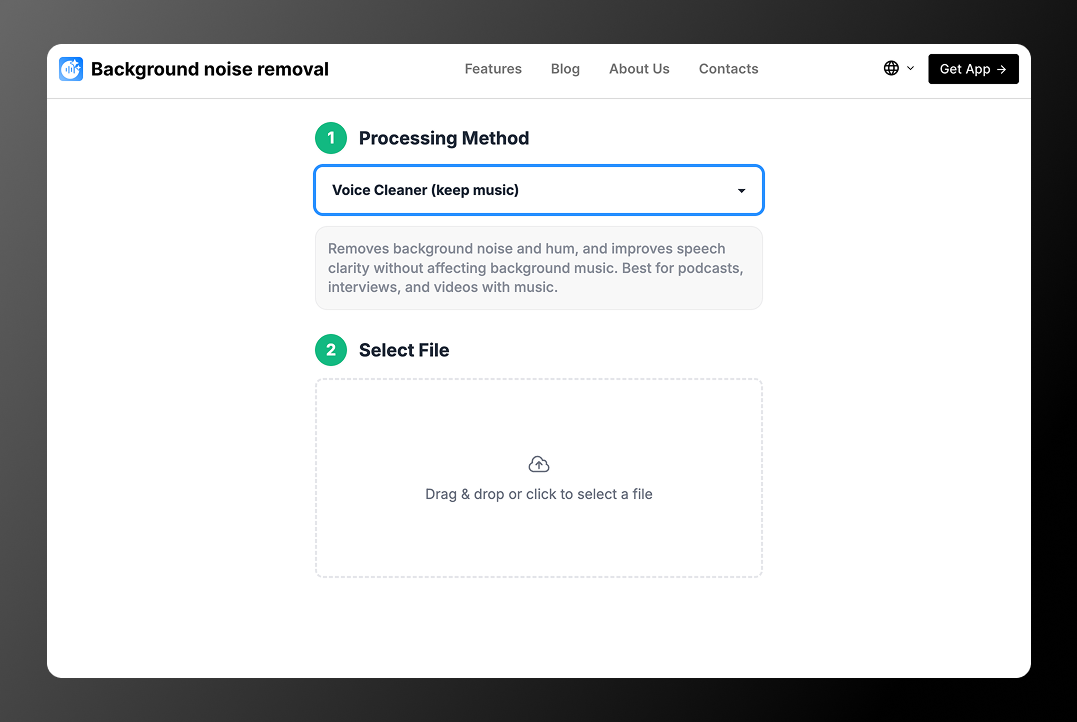
Let’s get straight to the point! We created an online tool that uses AI to enhance your voice quality. The service removes unwanted noise, fixes poor microphone recordings, and improves your voice by leveling volume and adding clarity to speech. The system automatically detects and corrects issues — you don’t need to do anything manually.
The service is currently free with minor limitations, so you can safely test it for your own tasks.
When does it help?
💡 It doesn’t matter what you recorded — a screencast, short social media video, training content, or a business presentation. Our service will help you process and improve audio quality in any video or audio file.
How does it work?
The service is very easy to use. Here is a step-by-step guide:
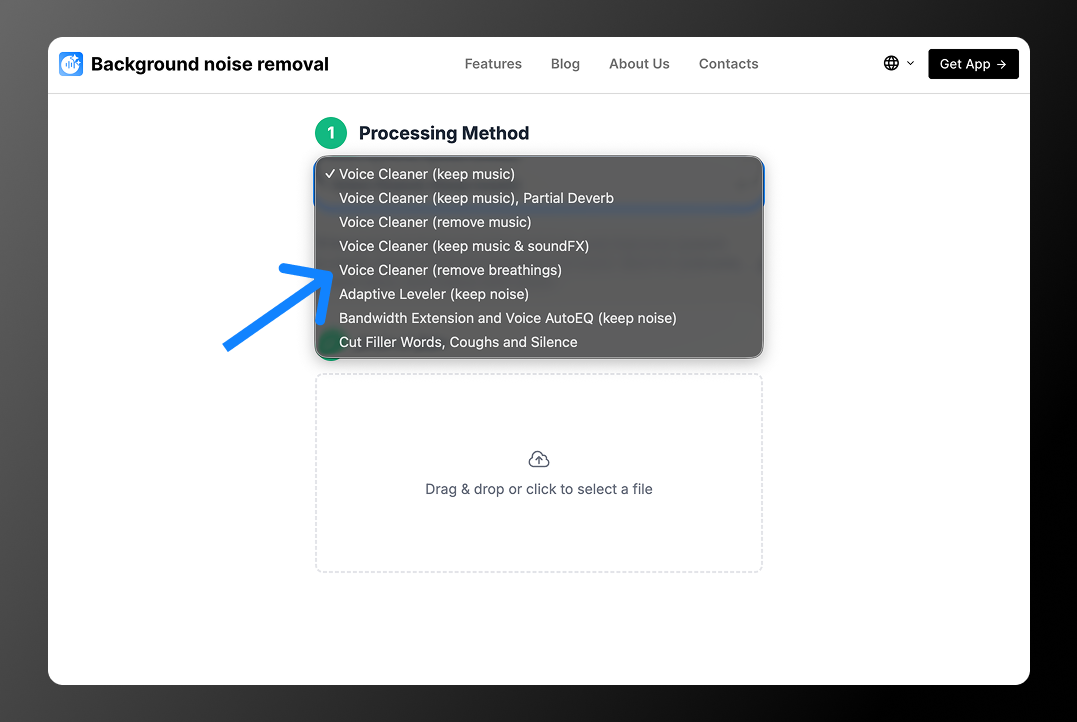
- Select the processing option you need. Our service offers 8 options. Here are the most popular ones:
- Voice Cleaner (keep music)
Removes background noise and hum while improving speech clarity without affecting background music. Ideal for podcasts, interviews, and videos with music. - Voice Cleaner (remove music)
Removes background music completely and keeps only the voice. - Bandwidth Extension and Voice AutoEQ (keep noise)
Makes the voice sound fuller and clearer using EQ and frequency restoration without aggressive background cleanup. Best for old, flat, or phone recordings.
2. Upload your file. The service supports the following formats: MP3, AAC, OGG, WAV, M4A, FLAC, MP4, AVI, MKV, WEBM, MOV.
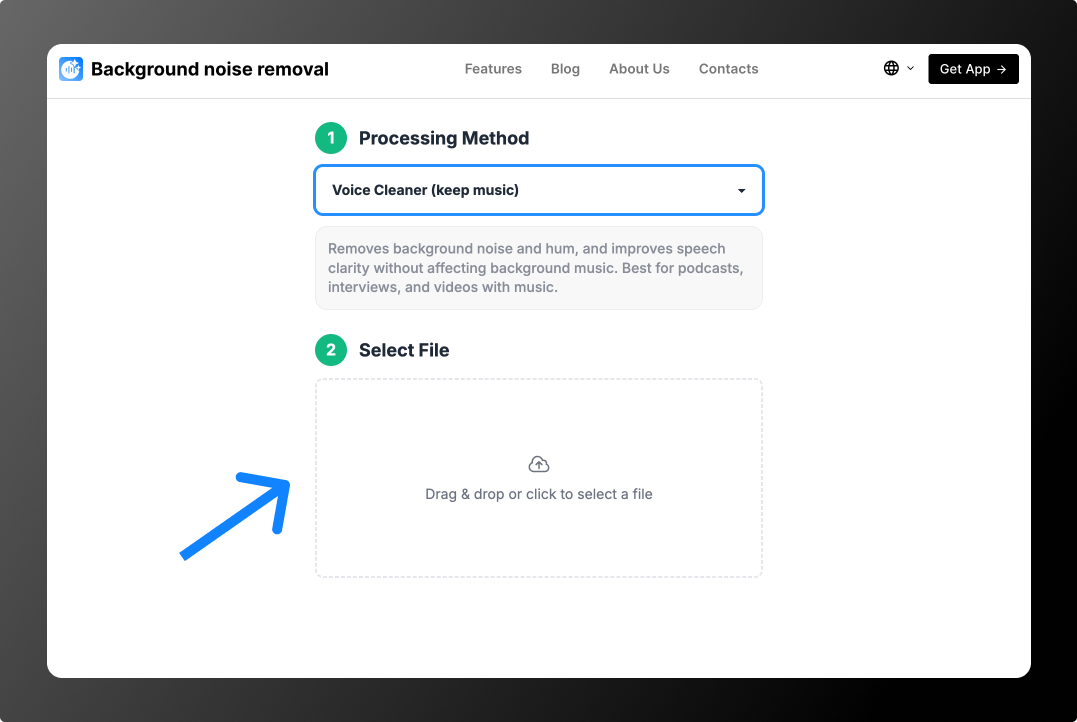
💡 File upload and processing will start automatically.
3. Wait for processing to finish. On average, processing 1 minute of audio takes 10–15 seconds. Once completed, a download button will appear so you can save your file.
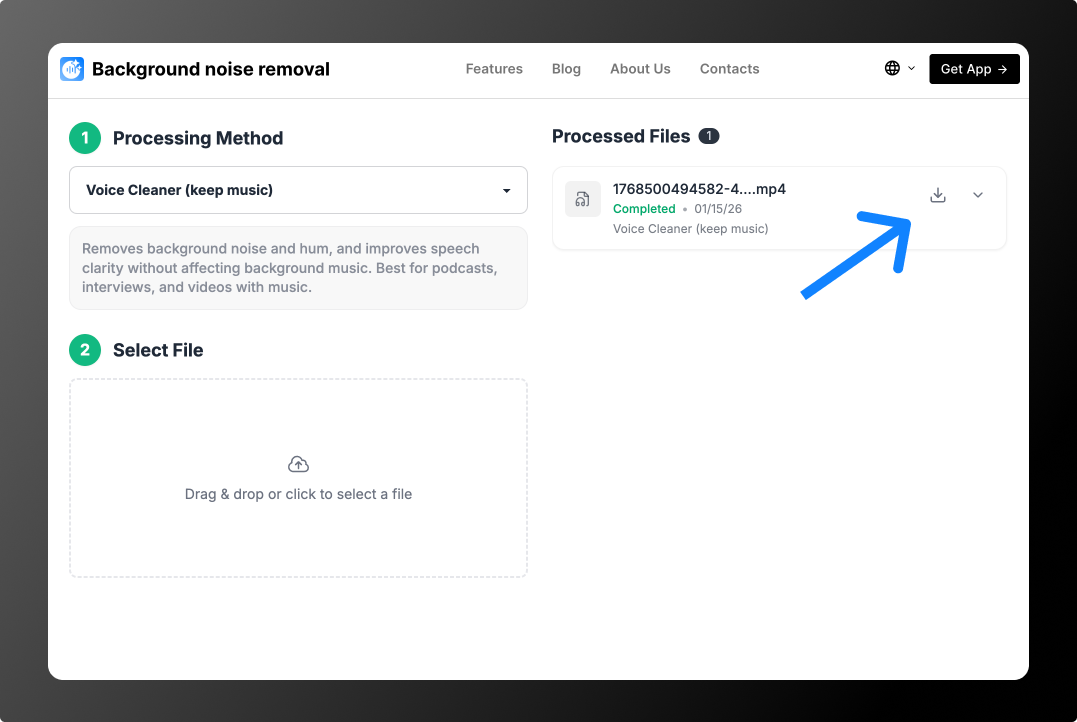
Done!
💡 If you’re not satisfied with the result, try other processing options and compare outcomes to choose the best one.
With this approach, you don’t need an expensive microphone. You can record videos anywhere or fix poorly recorded audio in just a few minutes. Try it yourself here: https://backgroundnoiseremoval.com.